- On the homepage, use the
search bar to look for the design type or size that you want to create.
Click on it from the results.
Scroll through the available templates.
To preview one, hover your mouse over it and click the
- that appears. Select Preview this template.
- To use the template, select Customize this template. You’ll then be taken to the editor.
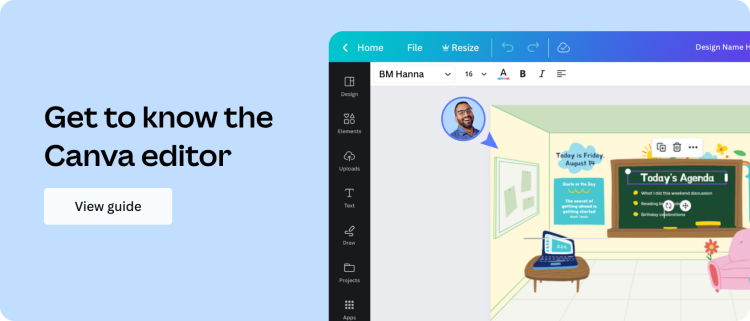
Templates in the editor side panel. Learn more about the Templates tab and the different parts of the Canva editor by selecting the image below.
To learn how to add, duplicate, delete, and manage design pages, see Adding, duplicating, or deleting pages, and more.
What templates are available?
Canva has thousands of available templates—from presentations, invitations, lesson plans, YouTube intros, and more! Refer to these articles on how to use some of them:
Planning to print your design?
If you’ll be printing your design, we suggest using CMYK colors to help make sure that the colors are printer-friendly. This is because colors don’t look the same on screens and on paper.
We also recommend doing this for Canva Print orders.


